Quick Start
This guide walks you through installing VIA Onboard, completing first-run setup, and getting your first answer from the AI chat.
Estimated time: 10–15 minutes on a fresh installation.
Step 1 — Download and install
- Go to the Download page and get the latest Windows installer.
- Run the
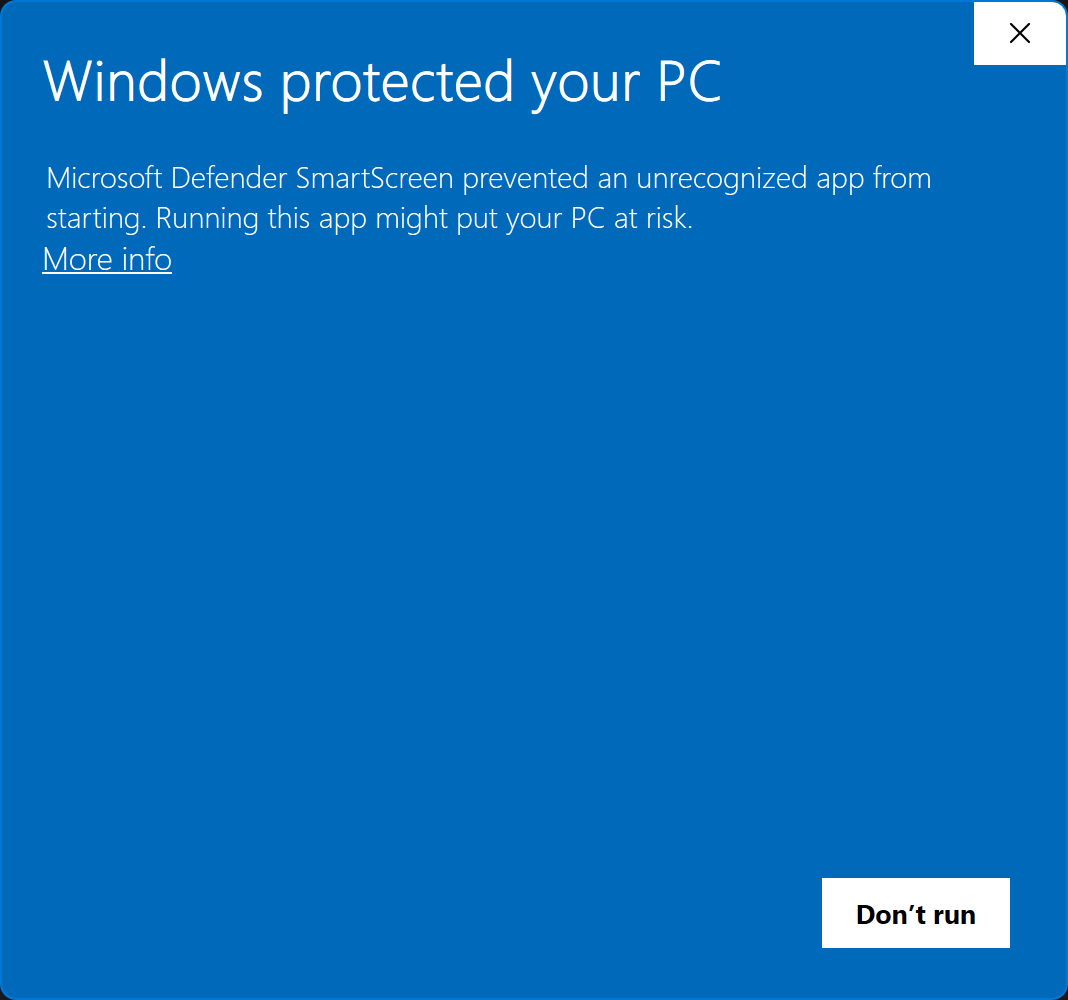
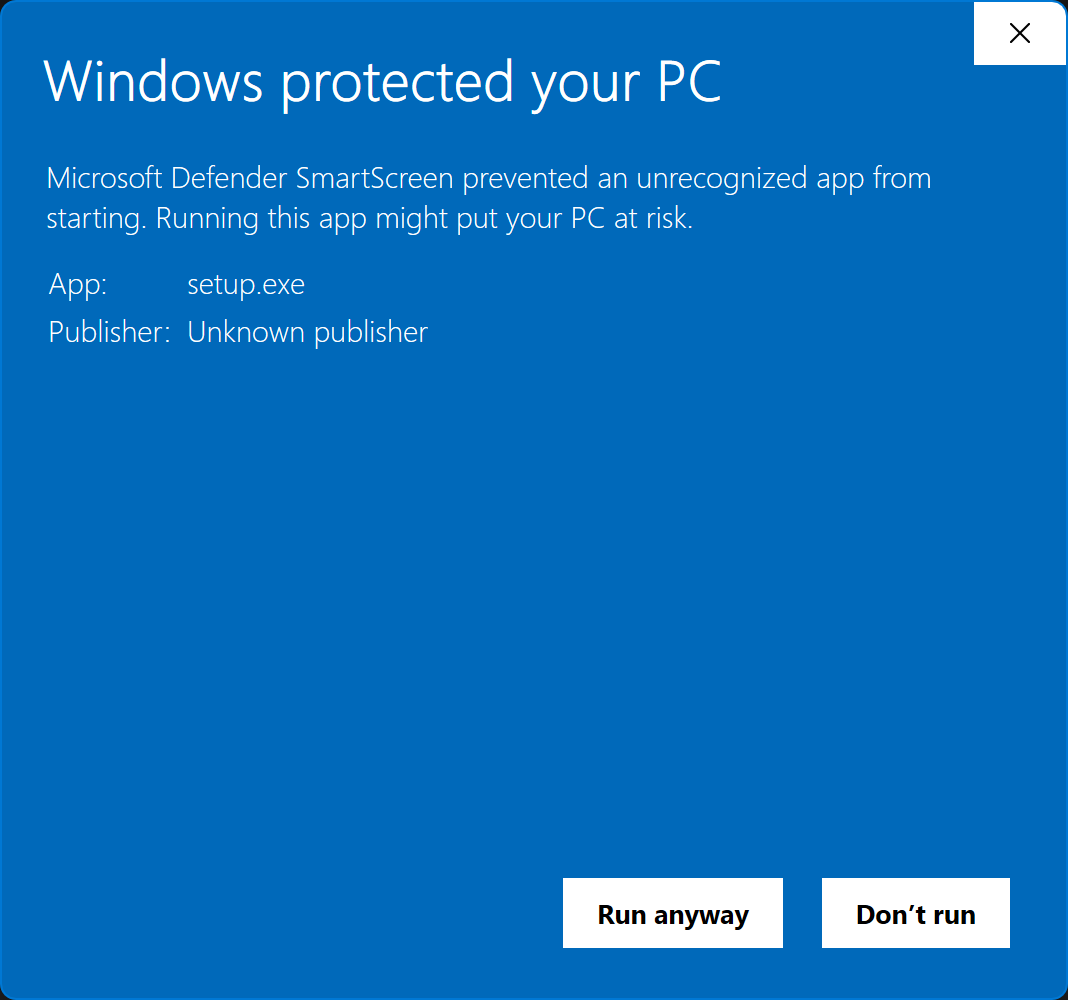
.exeinstaller. - If Windows SmartScreen warns you, click More info → Run anyway — this is expected for unsigned installers.
- The installer places VIA Onboard in
Program Filesand creates a desktop shortcut. It also installs the Calibration Guard daemon as a Windows Scheduled Task (runs silently in the background).
Windows SmartScreen warning
After clicking More info
Step 2 — First launch and health checks
Open VIA Onboard from the desktop shortcut or Start menu.
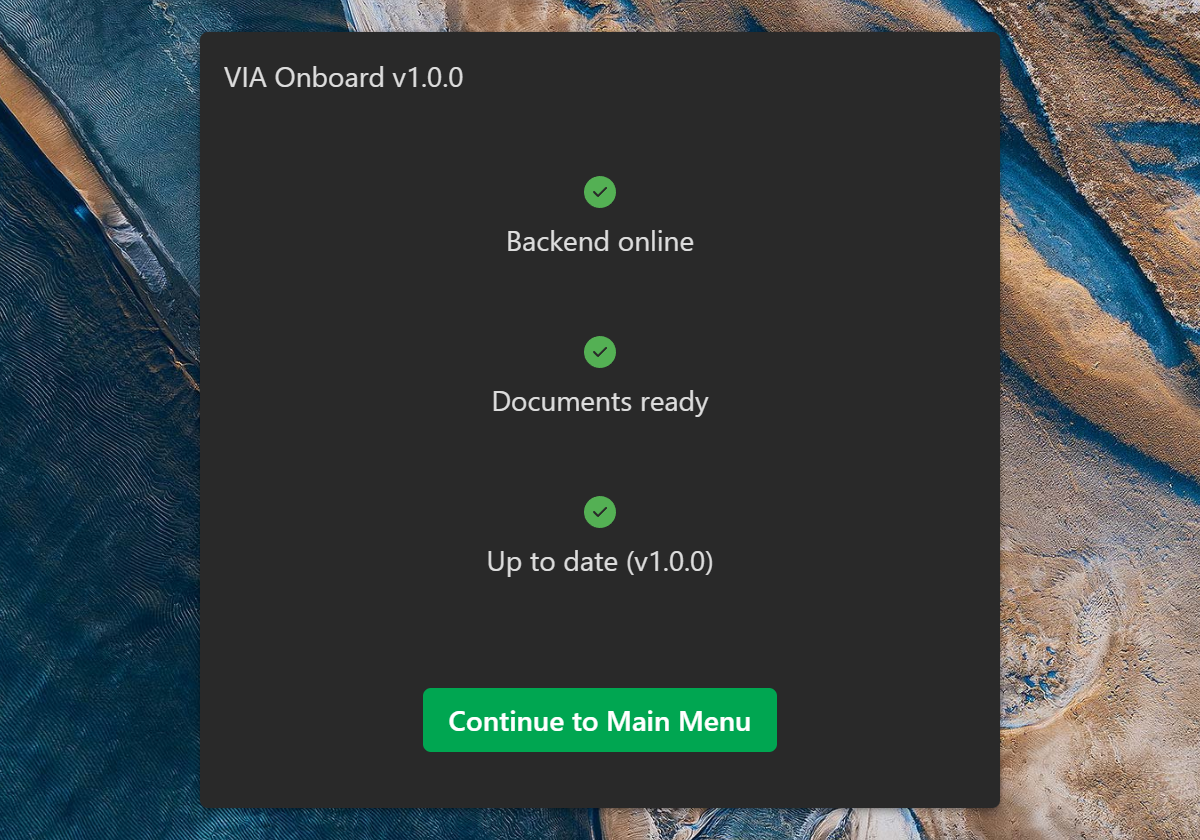
The splash screen runs three health checks before showing the main menu:
| Check | What it verifies |
|---|---|
| Backend online | The local FastAPI service started and is responding |
| Documents ready | The bundled document library is present and indexed |
| Up to date | The installed version matches the latest available release |
Wait for all three checks to show green. If a check fails, close the app, wait 5 seconds, and reopen it. If it fails again, see Troubleshooting.
Splash screen health checks
Step 3 — Configure your machine ID
- Click Settings on the main menu.
- Navigate to Settings → Service.
- Enter your ViciVision machine serial number in the Machine ID field.
This ID is used in service requests and log uploads. Set it before doing anything else so your data is properly attributed.
Step 4 — Check System Status
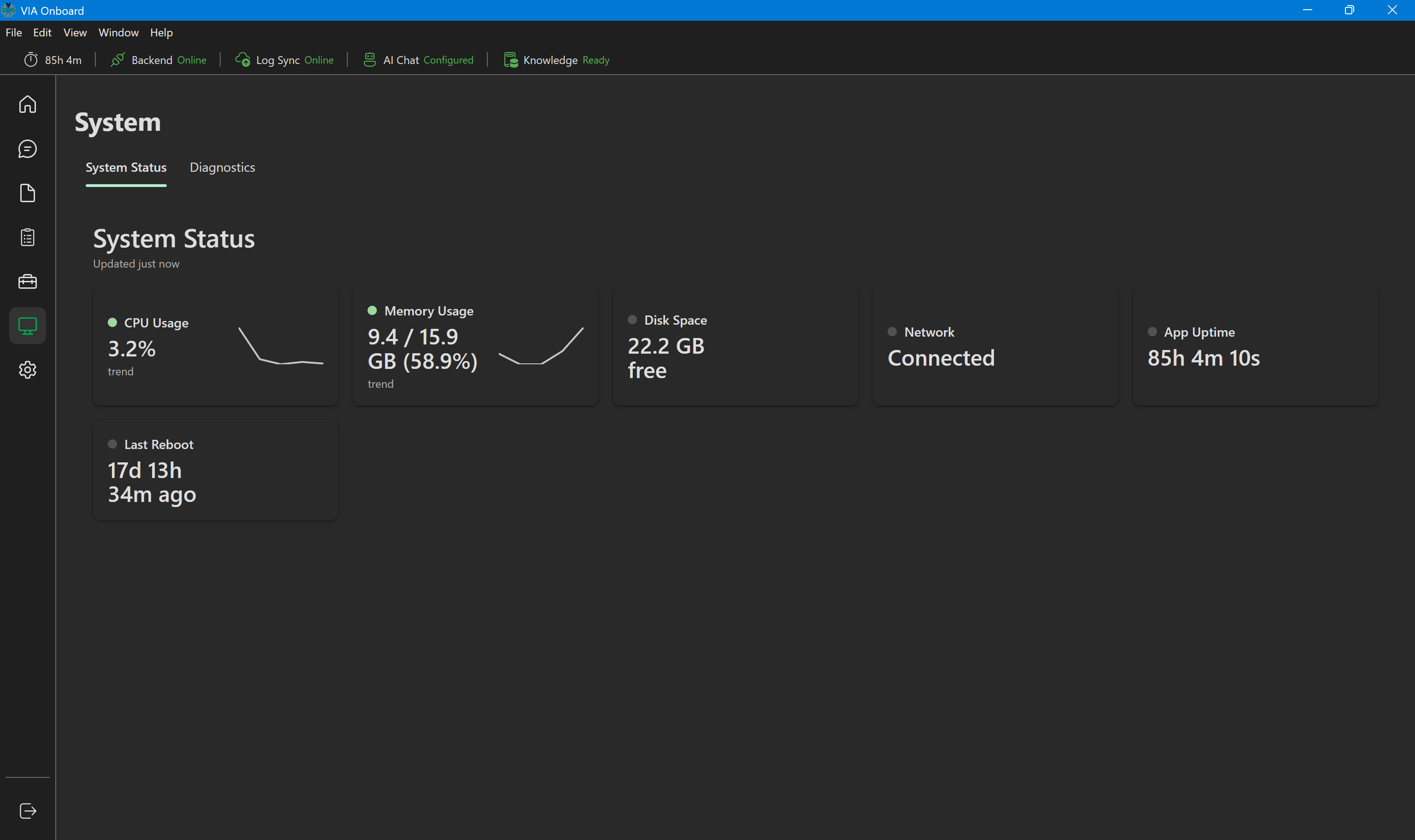
Click System Status on the main menu to see hardware health:
- CPU Usage and Memory Usage should be in the green range after the initial document setup completes.
- Disk Space — confirm there's sufficient free space (ChromaDB indices can use significant disk).
- Network — if you're using cloud sync, confirm this shows as connected.
System Status — all green
Step 5 — Configure log uploads (optional)
If you want to upload machine log batches for service tracking:
- Go to Settings → Log.
- Select the folder where machine logs are stored, and set a Machine ID and upload frequency.
- Click Upload Logs Now to upload immediately, or enable scheduled uploads to have it happen automatically on the schedule you set.
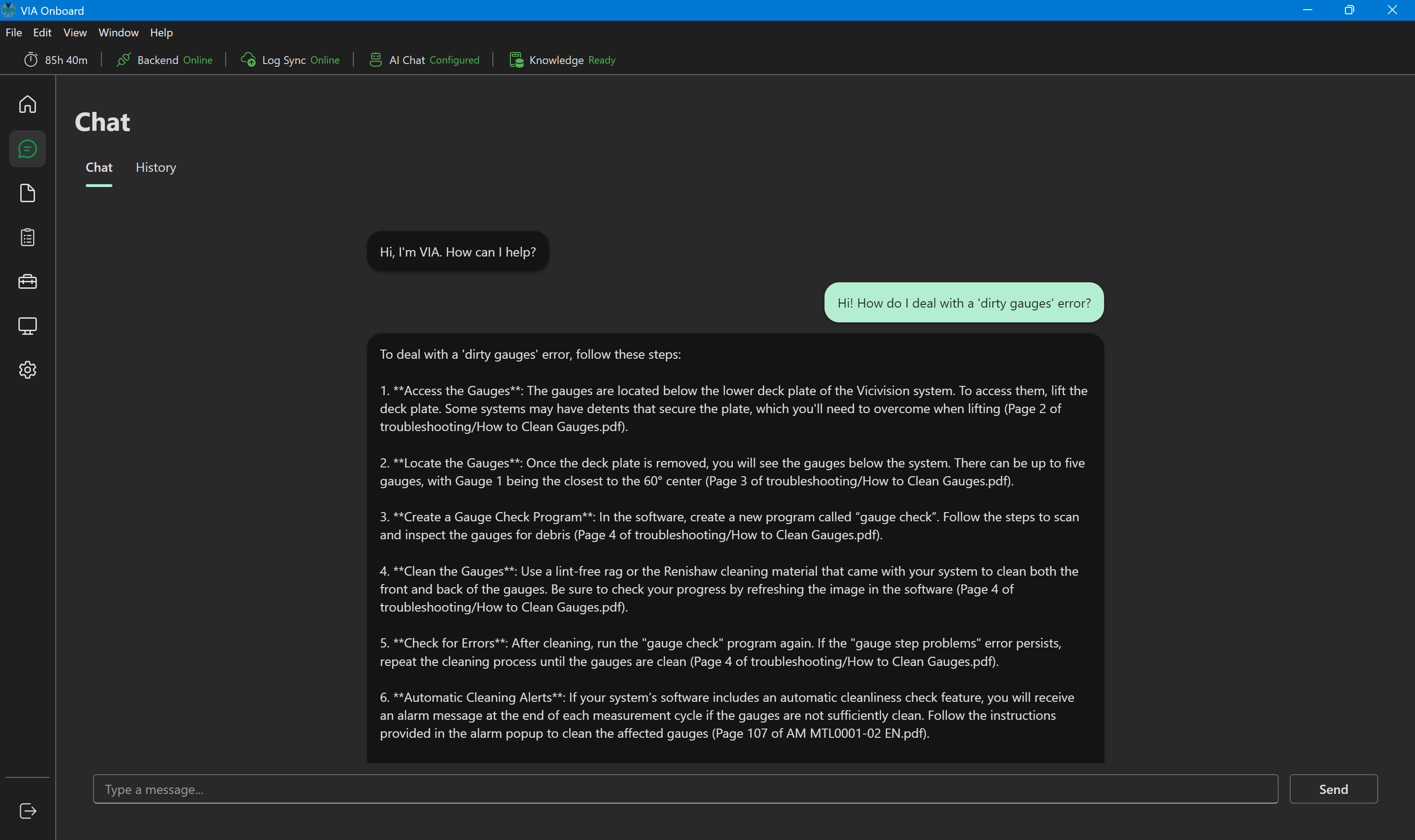
Step 6 — Ask your first question in Chat
- Click Chat on the main menu.
- A new conversation starts automatically.
- Type a question in the input box, for example:
"What does error code E45 mean?"
- The AI responds with an answer drawn from your indexed documents, including citations showing which page it came from.
- Click a citation page pill to open the source PDF in VIA Onboard's built-in viewer, jumping straight to the cited page.
Chat — first question and response
Step 7 — Install a Calibration Guard license key (if applicable)
If you will be performing authorized calibration work on this machine:
- Obtain a license key from ViciVision staff (issued via the License Key Server).
- Go to Settings → Service.
- Paste the key in the License Key field and click Install Key.
The key is written to the Windows Registry. Calibration Guard will allow changes to the protected .ini sections for the duration specified in the key.
Troubleshooting
Backend health check fails on splash screen:
The Python backend takes a few seconds to start. Wait 10 seconds and reopen the app. If it still fails, check that your antivirus isn't blocking the via-backend.exe process (located in Program Files\ViaOnboard\resources\).
Documents page is empty / chat says "no relevant documents found": On first run, VIA Onboard fetches its document library automatically — this can take a few minutes depending on your connection. Check the Documents page on the main menu to see if PDFs have appeared yet, or wait until the CPU tile on System Status returns to baseline.
Next steps
- Explore the full User Guide for deep documentation of every feature.
- Set up Calibration Guard if you work with machine calibration.
- Connect to VIA Online to sync data to the cloud portal.