Logs
The Logs section lets you review machine log batches that have already been uploaded. It connects to the remote Analytics Dashboard through the local backend's authenticated proxy. Uploading new logs happens in Settings → Log, not here — see that page for the upload controls.
Navigate here from the main menu or the sidebar.
Three tabs
| Tab | Purpose |
|---|---|
| Overview | Totals and charts (uploads, FATAL, ALARM) across all loaded batches for the current machine |
| Batches | A table of all batches, each with a View button that opens its full file/hit details |
| Upload History | A read-only table of past batches — same data as Batches, without the detail drill-down |
Overview
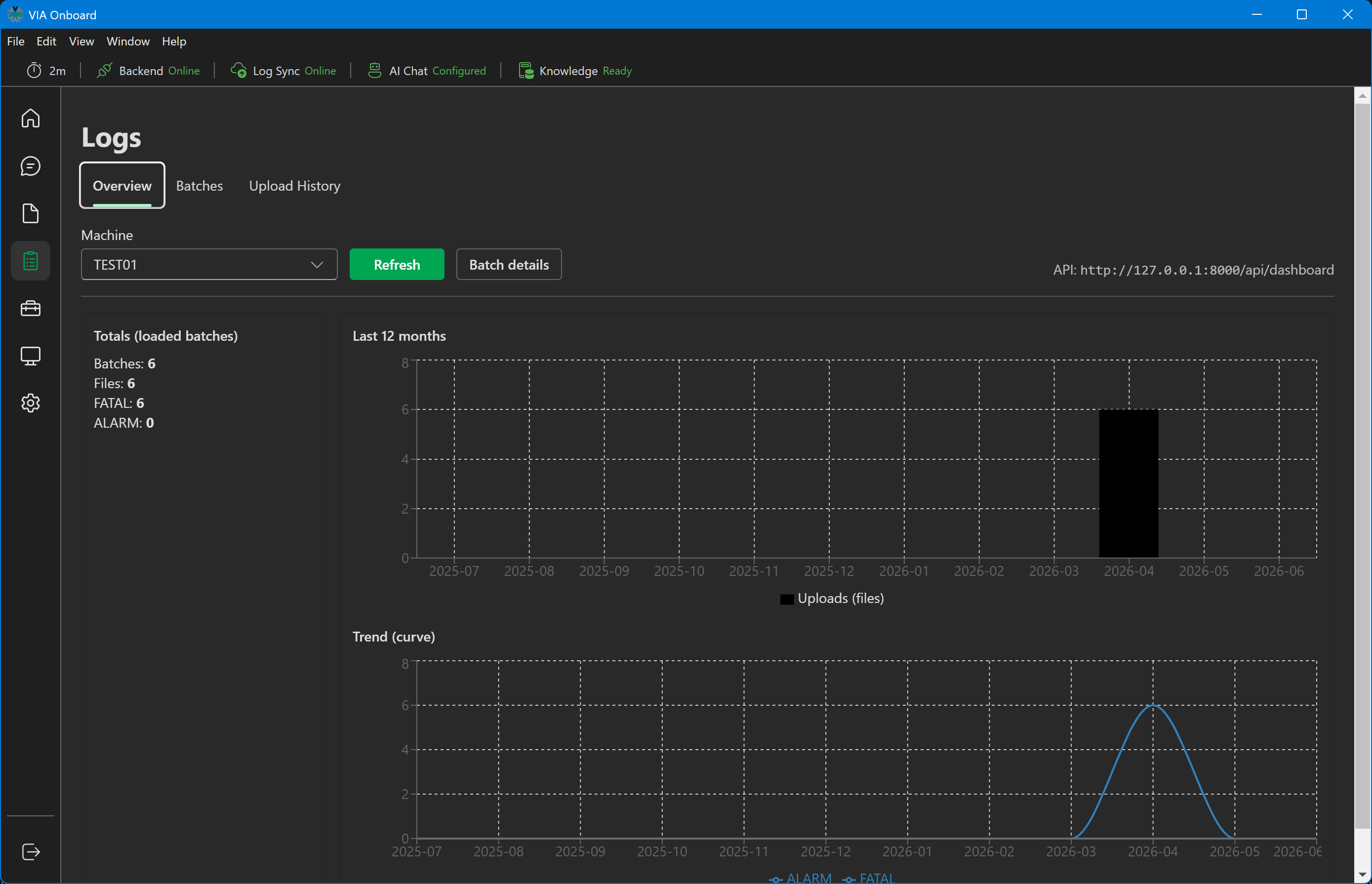
The default tab. Shows running totals (batches, files, FATAL, ALARM) for the selected machine, plus two charts: monthly upload volume over the last 12 months, and a FATAL/ALARM trend line.
Logs — Overview
Batches
A table of every batch uploaded for the current machine (Created, Batch ID, Files, FATAL, ALARM), with a View button per row.
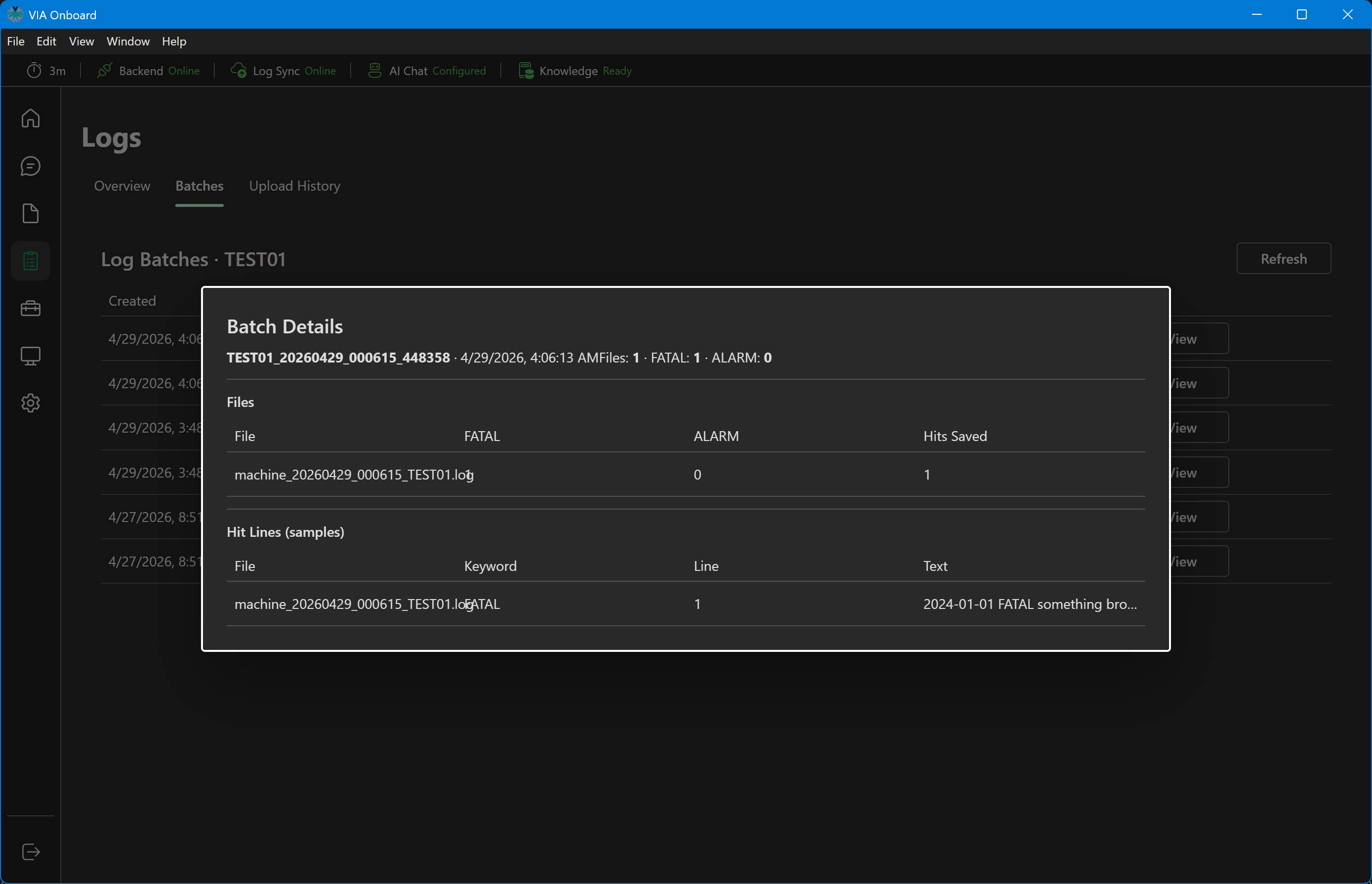
Click View on any row to open the Batch Details dialog for that batch — per-file FATAL/ALARM counts, hit counts, and sample matched lines (file, keyword, line number, text).
Logs — Batches, with the Batch Details dialog open
Upload History
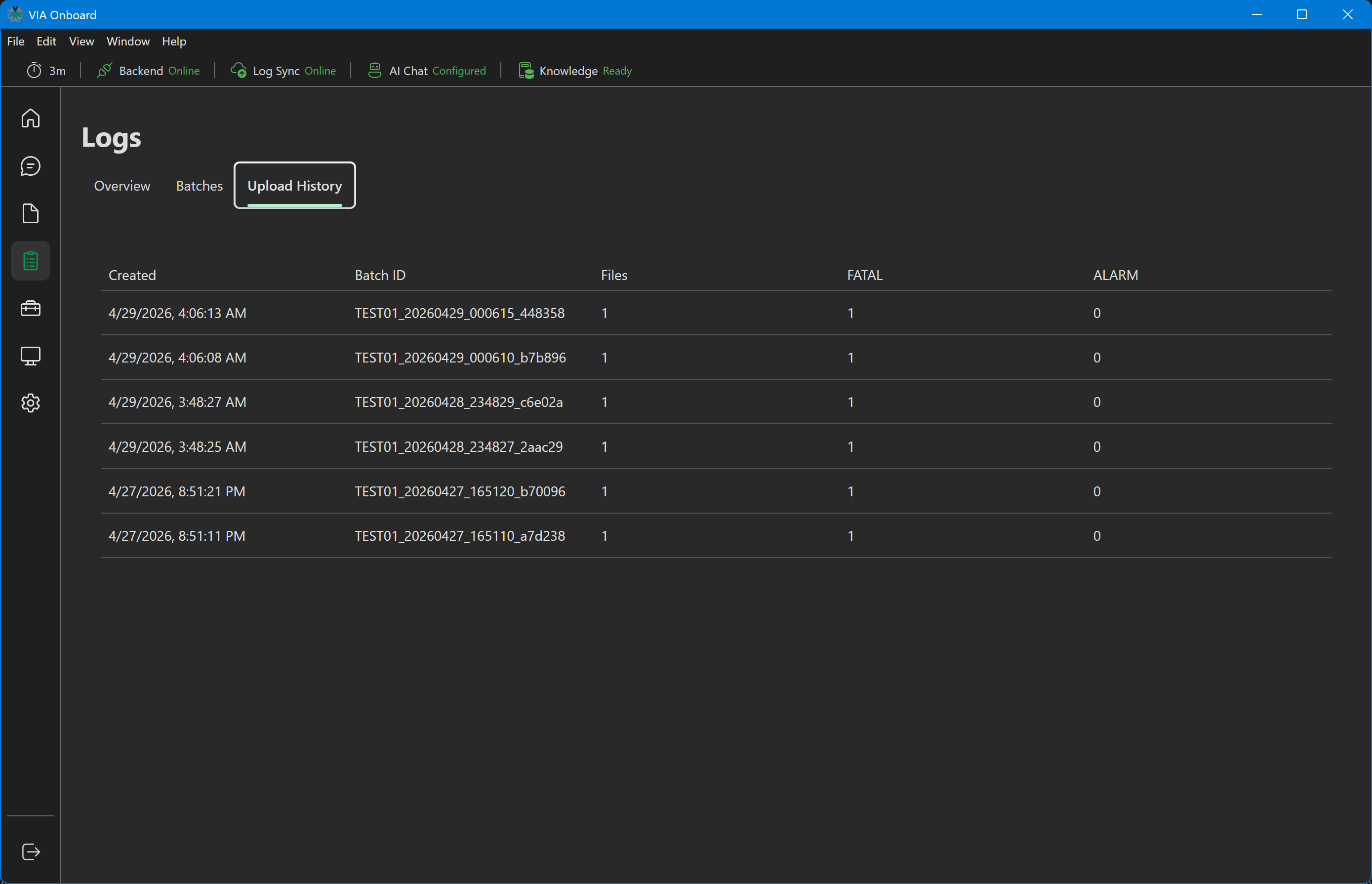
The same batch list as Batches (Created, Batch ID, Files, FATAL, ALARM), but read-only — there's no per-row detail button here.
Logs — Upload History
Uploading log batches
Uploads are configured and triggered from Settings → Log, not from the Logs section. There you can:
- Upload the configured log folder immediately (Upload Logs Now)
- Enable a Daily/Weekly/Monthly schedule that uploads automatically
- Allow the remote dashboard to request an on-demand upload
See Settings → Log for details. Once a batch is uploaded, it appears in all three Logs tabs.
Troubleshooting
A tab shows "Failed" or an error message instead of data: The Logs tabs depend on the local backend reaching the remote Analytics Dashboard. Check that the backend is running (green on the splash screen) and that the machine has internet access. The error text usually includes the underlying HTTP status — a 403 means the backend's dashboard API key is misconfigured; other errors usually mean the dashboard server is unreachable.
No machine selectable / "No machine id configured": Set a Machine ID in Settings → Log first — the Logs tabs are scoped to whatever machine ID is configured there.