Fleet Overview
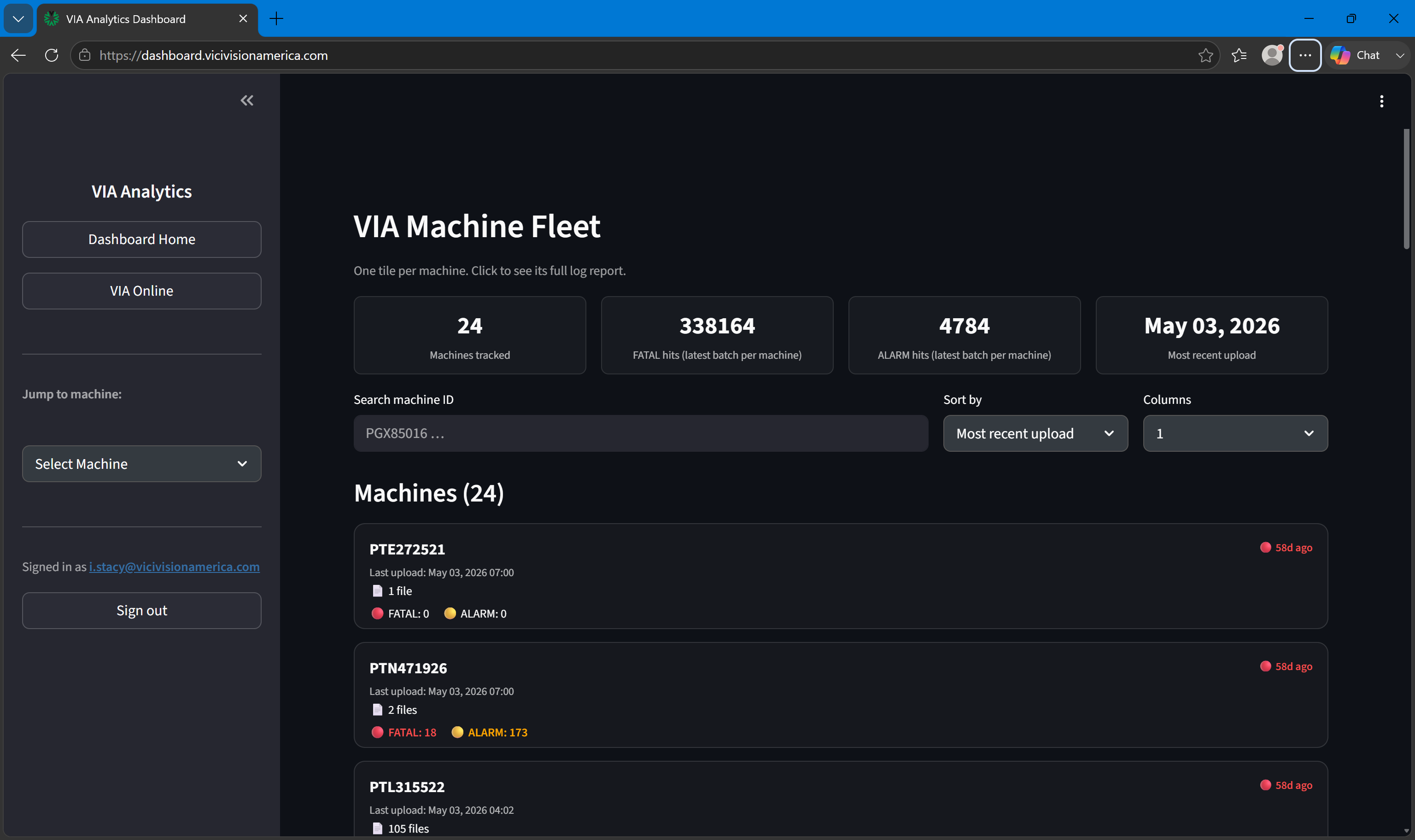
The Fleet Overview is the main page of the Analytics Dashboard. It loads when you first log in and shows the current health of your entire machine fleet at a glance.
Fleet Overview — full page
Fleet stat cards
At the top of the page, four stat cards summarize the fleet:
| Card | Description |
|---|---|
| Machines tracked | Total number of machines that have ever uploaded a log batch |
| FATAL hits (latest batch) | Sum of FATAL-level events across all machines' most recent batches |
| ALARM hits (latest batch) | Sum of ALARM-level events across all machines' most recent batches |
| Most recent upload | The most recent timestamp of any machine's last upload |
These cards are always calculated from the most recent batch per machine — they reflect the current state, not all-time totals.
Machine tiles
Each machine appears as a clickable tile showing:
- Machine ID — the unique identifier
- Last upload — date and exact time of the most recent log batch
- Freshness indicator — color-coded time since last upload:
- 🟢 Today / within 7 days
- 🟡 8–30 days ago
- 🔴 More than 30 days ago / never
- File count — number of log files in the latest batch
- FATAL count — FATAL-level events (red if > 0)
- ALARM count — ALARM-level events (orange if > 0)
Machine tile close-up
Click any tile to open the Machine Report for that machine.
Search and sort
Search: Type in the Search machine ID field to filter tiles. The filter is applied in real-time as you type. Matches any substring of the machine ID (case-insensitive).
Sort by: - Most recent upload — machines with the freshest data appear first (default) - Most FATAL — machines with the most FATAL events in their latest batch appear first - Most ALARM — machines with the most ALARM events appear first - Machine ID — alphabetical order
Columns: The grid layout supports 1, 2, 3, or 4 tiles per row. Use the Columns selector to adjust.
Sidebar navigation
The sidebar provides: - Dashboard Home button — returns to the fleet overview from any page - VIA Online button — link to the VIA Online portal - Jump to machine dropdown — select any machine ID from a dropdown to navigate directly to its report - Log out button