Quick Start
Step 1 — Open the dashboard
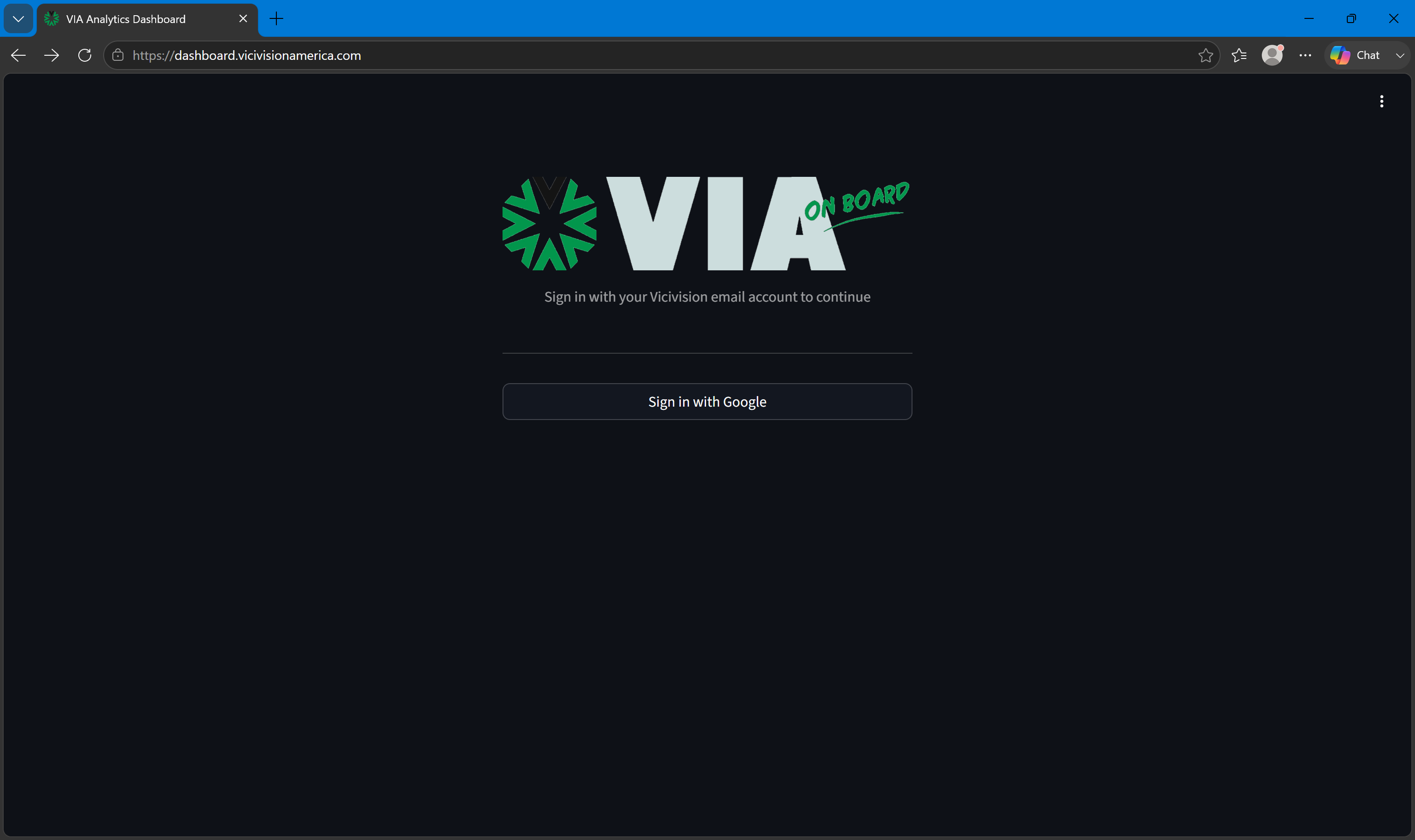
Navigate to the Analytics Dashboard URL provided by your administrator. You will be prompted to log in.
Analytics Dashboard login
Step 2 — View the fleet
After logging in, the Fleet Overview page loads automatically. You'll see:
- Fleet stat cards at the top — total machine count, total FATAL hits, total ALARM hits, most recent upload date
- Machine tiles below — one card per machine, sortable and filterable
Fleet overview after login
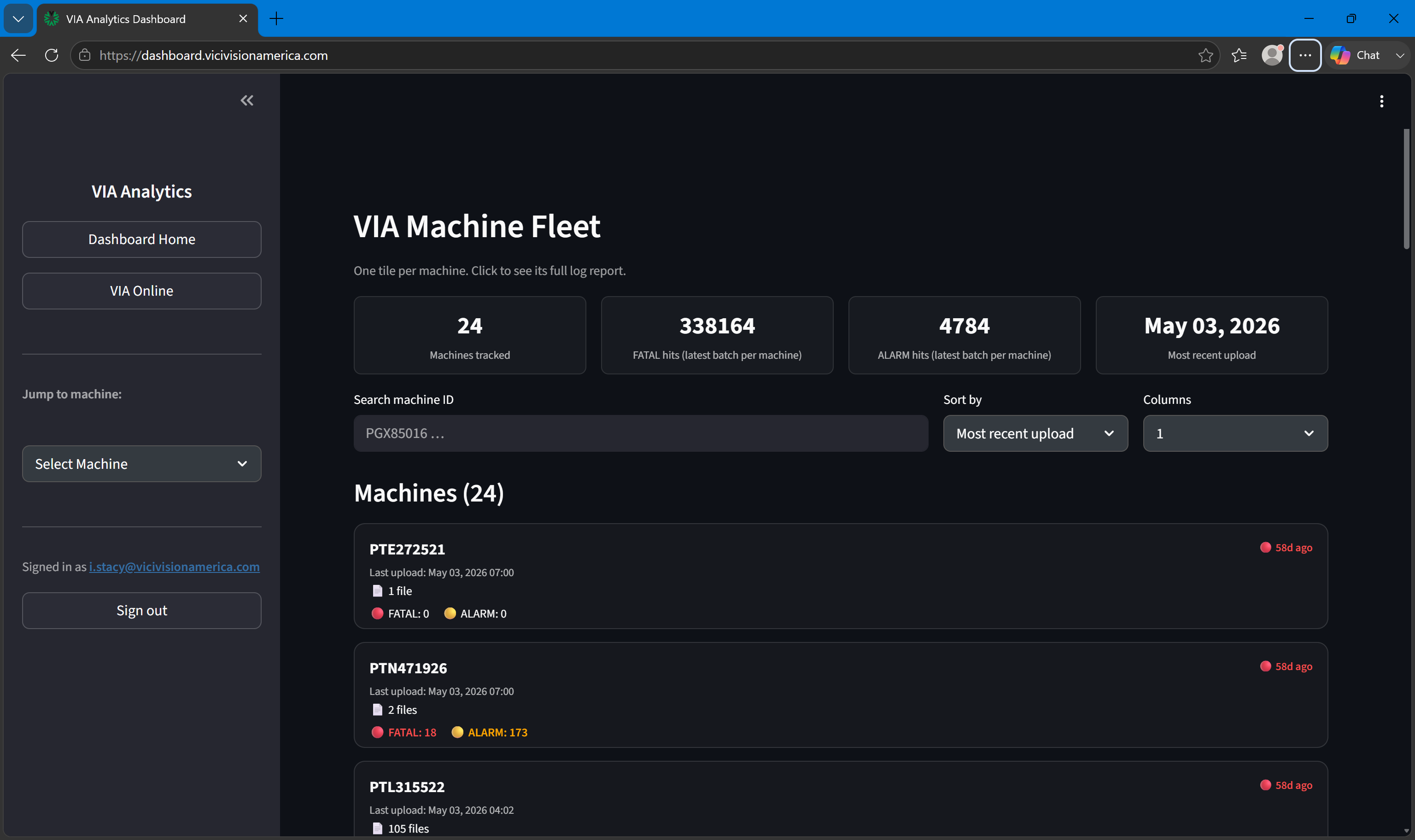
Each machine tile shows: - Machine ID - Last upload date and time - Upload freshness (Today, Nd ago, or Never — color coded green/yellow/red) - FATAL count (red if > 0) - ALARM count (orange if > 0) - Number of log files in the latest batch
Step 3 — Open a machine report
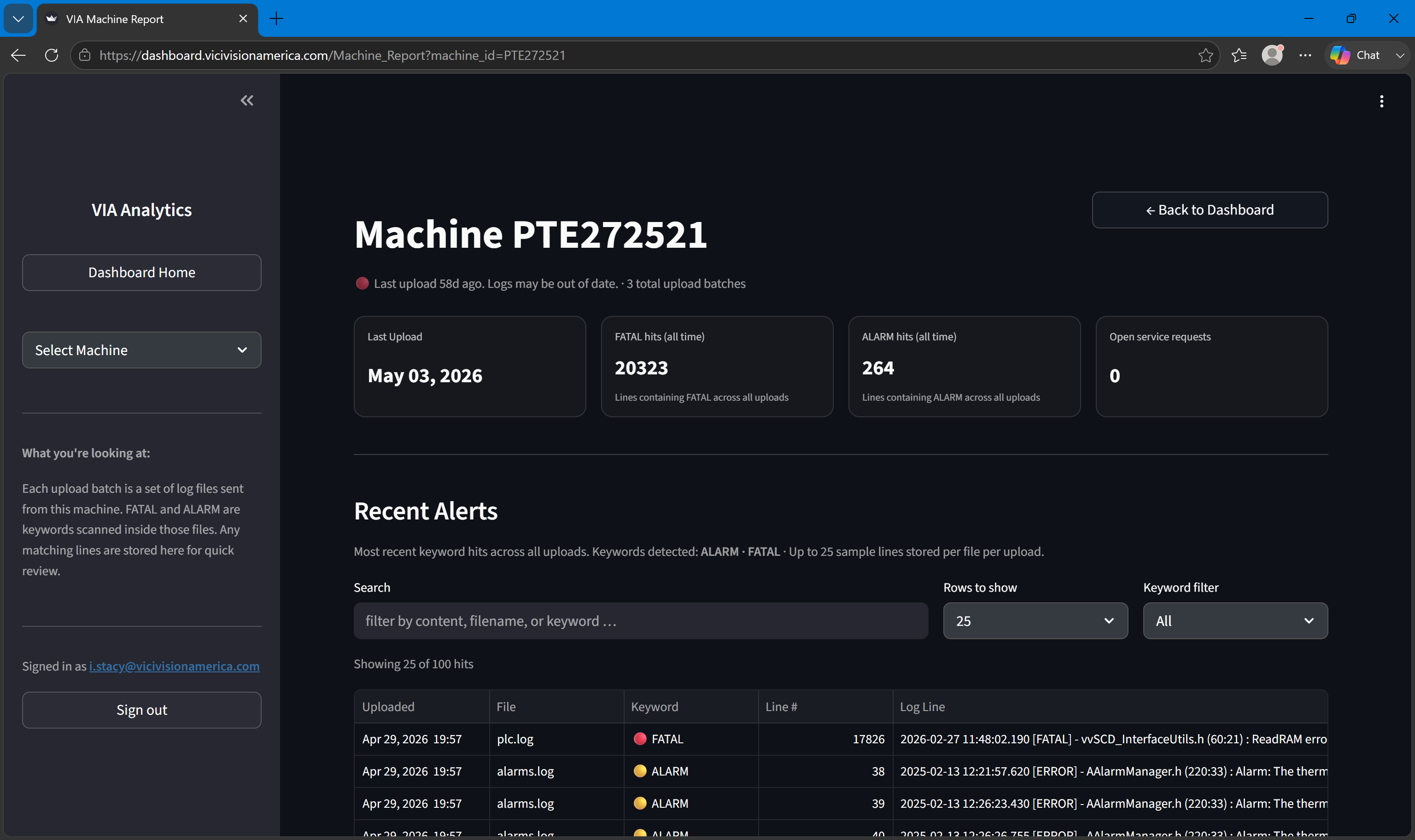
Click any machine tile to open its Machine Report. The report page loads charts and data specific to that machine.
Machine Report
Step 4 — Read the machine report
The Machine Report shows: - Summary stat pills (total files, FATAL count, ALARM count, last upload time) - Error frequency chart over time - Per-batch history table - Log line viewer with severity filtering
See Machine Report for a full walkthrough.
Step 5 — Find a specific machine
Back on the Fleet page, use the Search machine ID field to filter tiles by machine ID. You can also: - Sort by Most recent upload, Most FATAL, Most ALARM, or Machine ID - Change the Columns selector to show 1, 2, 3, or 4 machines per row
Or use the Jump to machine dropdown in the sidebar to navigate directly.