System Status
System Status gives you a real-time view of the hardware and software health of the machine running VIA Onboard. It is the first place to check when diagnosing performance issues or confirming the application is operating normally.
Navigate here from the main menu card or the sidebar.
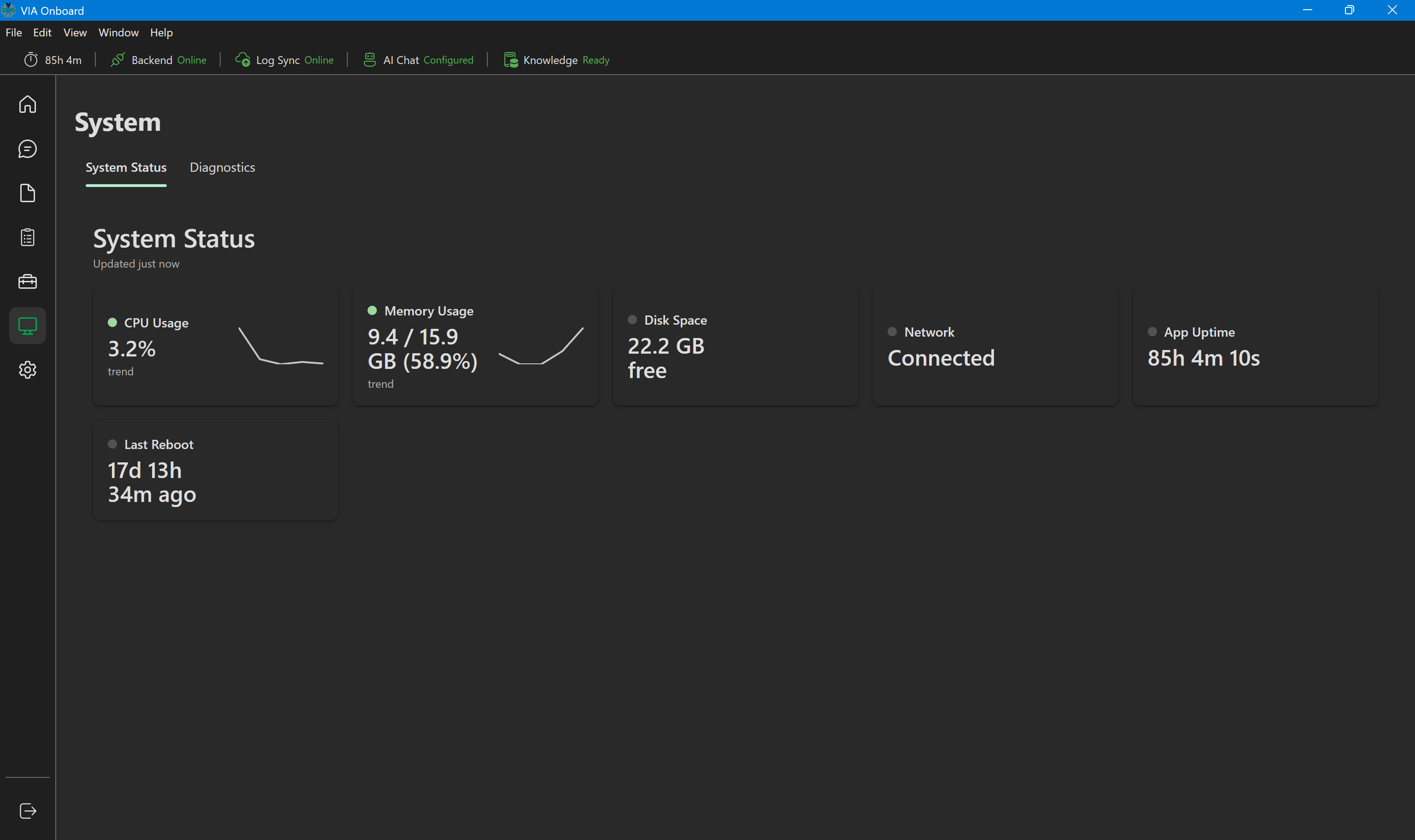
System Status page — metric tiles
Metric tiles
Each metric is displayed as a tile with a current value, a color-coded state indicator, and a trend sparkline (where applicable).
| Metric | What it shows | States |
|---|---|---|
| CPU Usage | Current CPU utilization as a percentage | Good (<75%), Warn (75–89%), Bad (≥90%) |
| Memory Usage | Current RAM utilization as a percentage | Good (<75%), Warn (75–89%), Bad (≥90%) |
| Disk Space | Free/used disk space | Informational |
| Network | Network connectivity status | Good (Connected), Bad (Disconnected) — checked by reaching 8.8.8.8 |
| App Uptime | How long the VIA Onboard backend has been running | Informational |
| Last Reboot | Time since the last Windows restart | Informational |
Polling interval
System Status polls the backend every 10 seconds. The header shows "Updated just now" after each successful poll. If a poll fails (e.g., the backend is temporarily unavailable), the header shows the error and the tiles retain their last known values until the next successful poll.
Trend sparklines
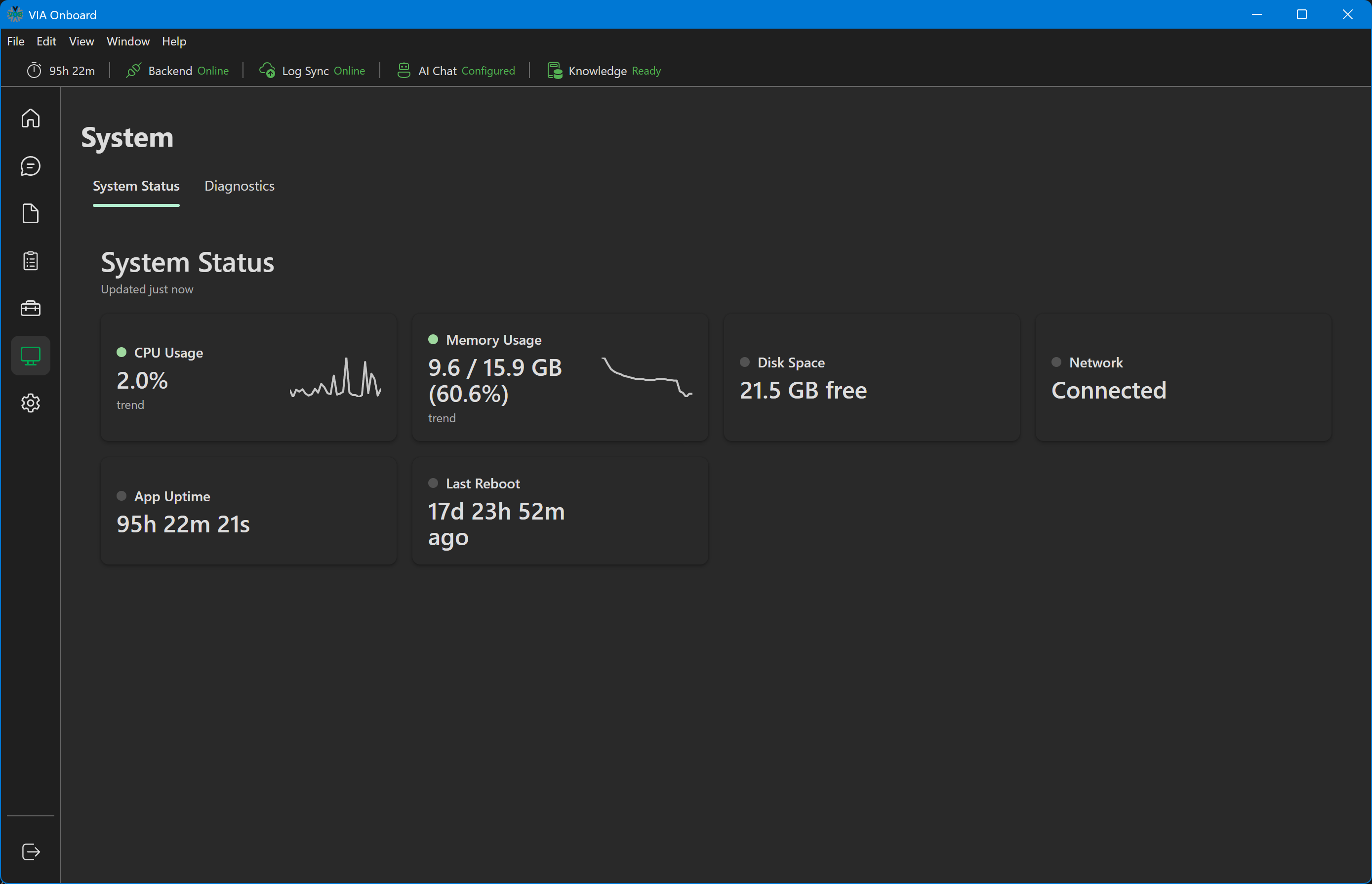
CPU and Memory tiles display a mini sparkline chart showing the last ~6 minutes of data (36 data points at 10-second intervals). This gives you a quick sense of whether utilization is stable, climbing, or spiking.
System Status — CPU and Memory tiles with trend sparklines
Customizing visible monitors
You can show or hide individual metric tiles in Settings → System. All monitors are enabled by default. If a monitor is disabled in settings, its tile is hidden from the System Status grid.
This setting only affects the System Status tab — the Diagnostics tab always shows all six hardware metrics regardless of what's hidden in Settings.
Diagnostics tab
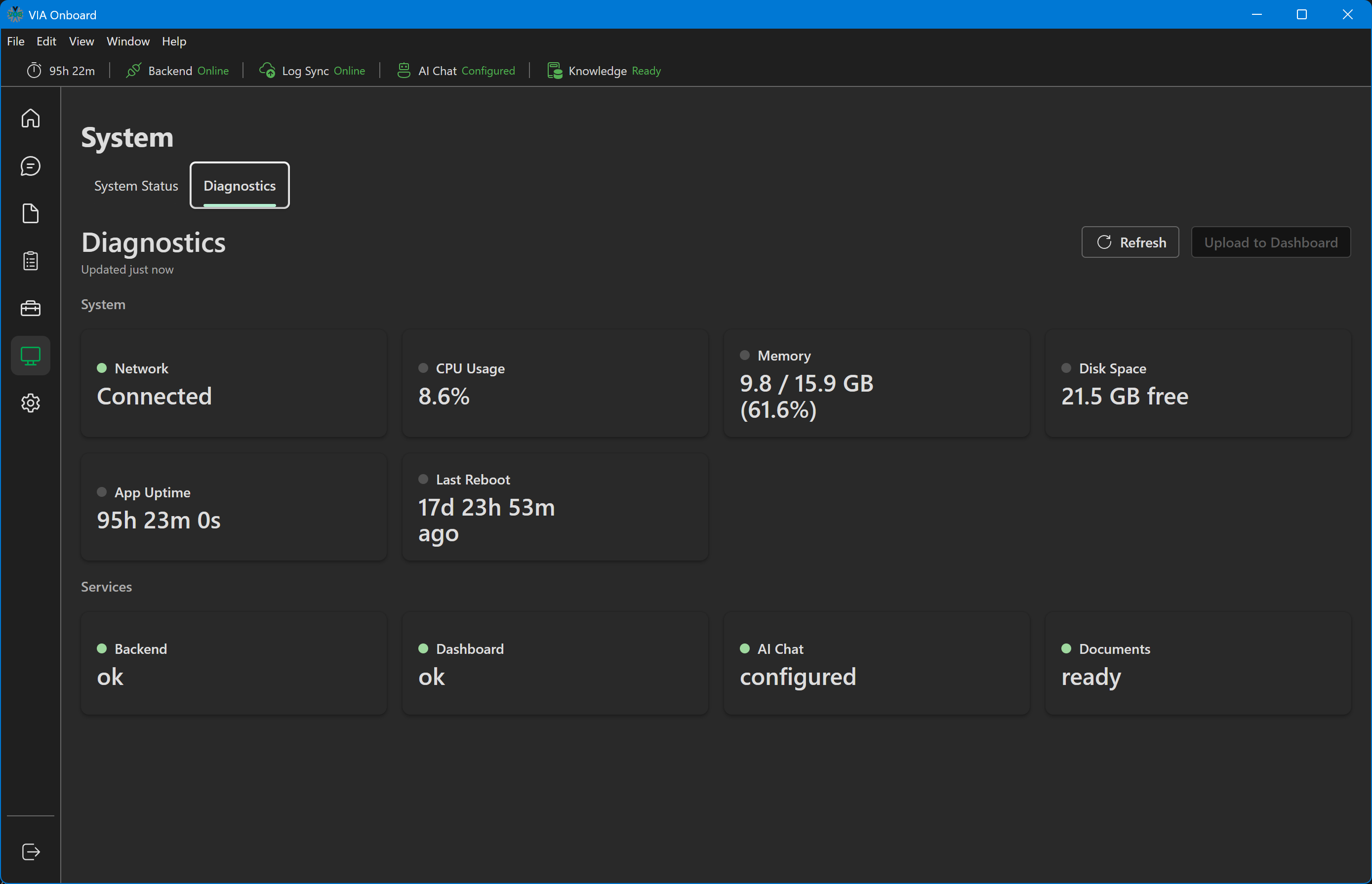
A Diagnostics tab is also available within the System section, alongside System Status. It repeats the same hardware metrics (CPU, Memory, Disk Space, Network, App Uptime, Last Reboot) and adds a Services breakdown showing the status of the Backend, Dashboard, AI Chat, and Documents services individually — useful for narrowing down which component is failing when something isn't working.
A Refresh button manually re-fetches both sections. An Upload to Dashboard button is visible but disabled ("coming soon") — sending diagnostics to a remote dashboard is planned for a future release, not available in this version.
Diagnostics tab
Interpreting warnings
CPU at Warn or Bad: High CPU is often caused by the document library downloading on first run. If that has already completed, another process on the machine may be consuming resources.
Memory at Warn or Bad: ChromaDB and the Python backend keep vector indices in memory. With large document libraries, this can be significant. Consider splitting the document library or increasing available RAM.
Network shows Bad: The Network tile reflects whether the VIA backend can reach the internet (it tests connectivity to 8.8.8.8). A Bad/Disconnected state means that check failed. This affects cloud sync (if configured) but not local features like Chat and Documents.
App Uptime is very low: A recent low uptime means the backend restarted unexpectedly. Check the backend log for errors.