Dashboard & Main Menu
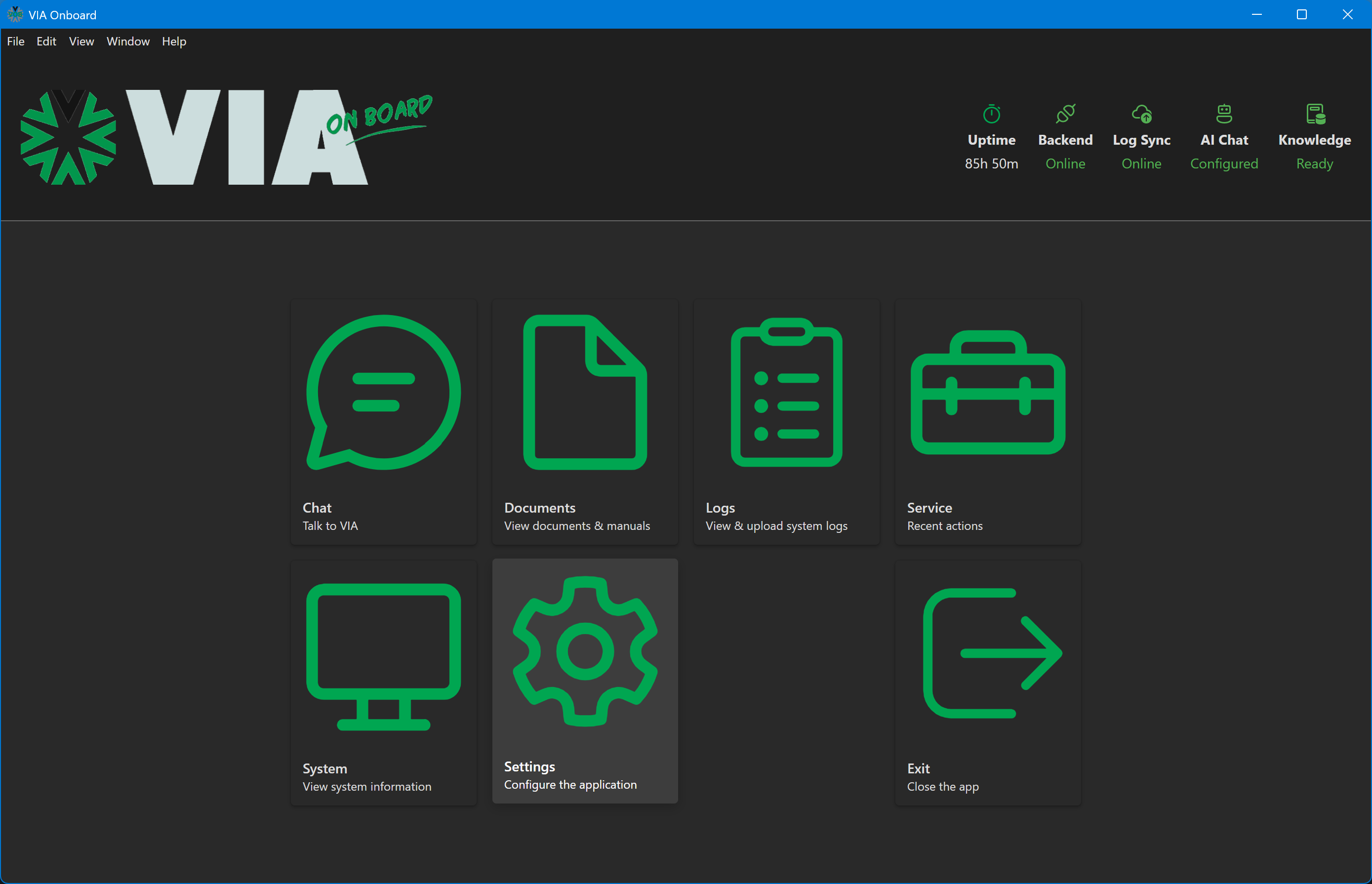
The main menu is the central navigation hub of VIA Onboard. After the splash/health-check screen, it is the first page you see. Every major feature of the application is accessible from here as a clickable card.
VIA Onboard main menu
Navigation cards
The main menu displays a card grid. Each card represents a top-level section of the application. Click any card to navigate to that section.
| Card | Description |
|---|---|
| Chat | AI assistant — ask questions about your documents and logs |
| Documents | PDF library — browse, search, and read machine documentation |
| Logs | View and upload system logs |
| Service | Recent service actions and calibration history |
| System | View system information |
| Settings | Configure the application |
| Exit | Close the app |
Returning to the main menu
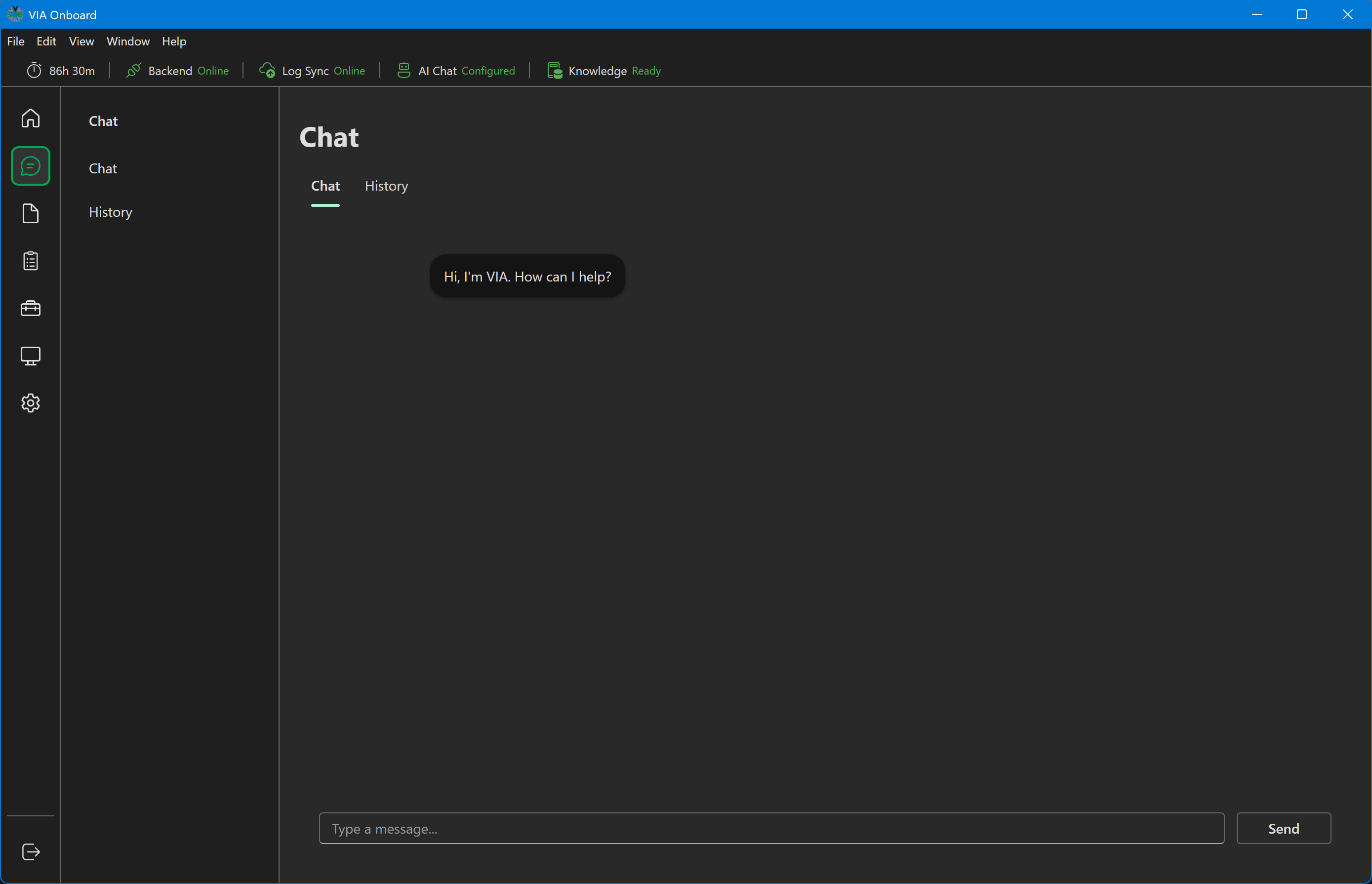
A house icon at the top of the sidebar is available from within any section. Click it to return to the main menu card grid at any time.
VIA Onboard navigation — sidebar and top bar
Sidebar navigation
Once inside any section, a persistent sidebar provides quick access to all top-level areas. The sidebar can be collapsed to free up horizontal space. Its open/closed state persists across page navigations when Settings → App → Keep sidebar open when switching pages is enabled.
Splash screen and health checks
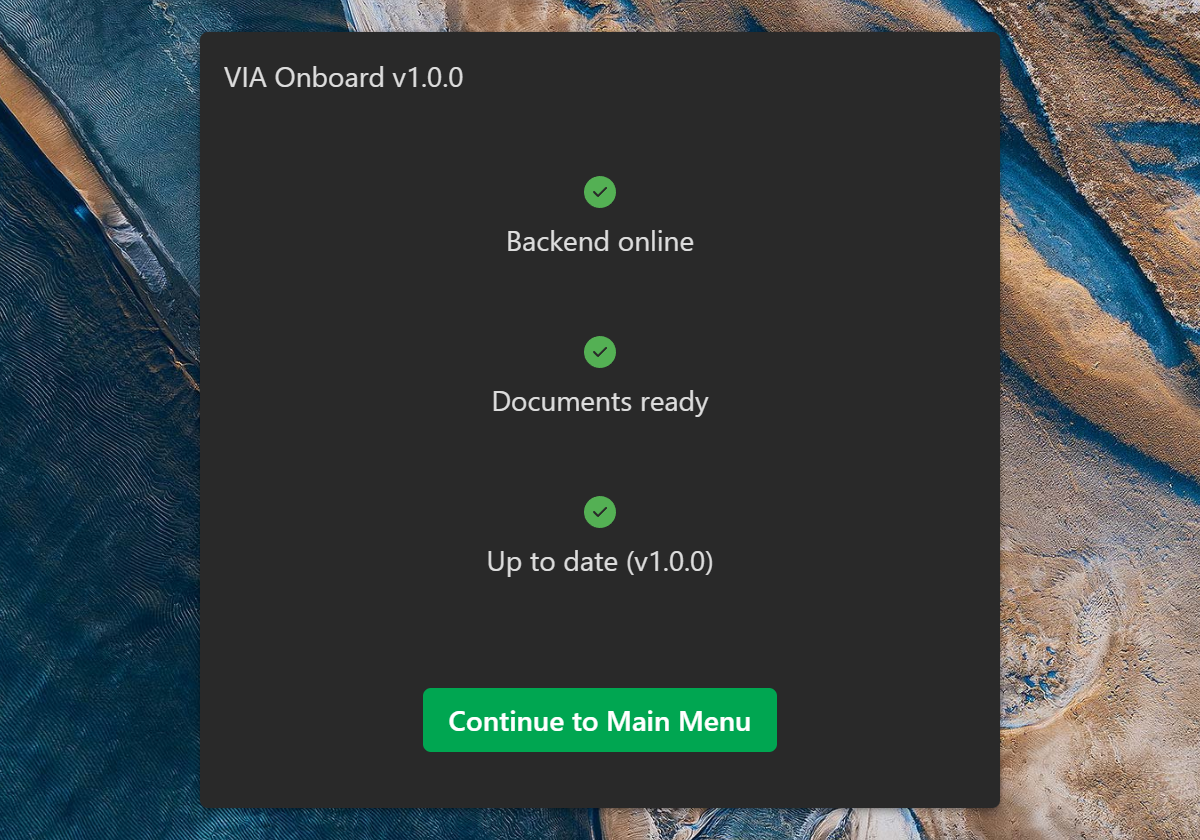
Before the main menu appears, VIA Onboard runs a brief splash screen that checks:
- Backend online — the local FastAPI backend must be reachable
- Documents ready — the bundled document library is present and indexed
- Up to date — the installed version matches the latest available release
If a check fails, the splash screen shows an error and guidance before proceeding. Most failures indicate the backend process didn't start — wait a few seconds and try reopening the app.
VIA Onboard splash/health check screen