Settings
The Settings section controls all configurable aspects of VIA Onboard. It is divided into seven tabs, each covering a specific area of the application. Navigate here from the main menu or the sidebar — it opens to the App tab by default.
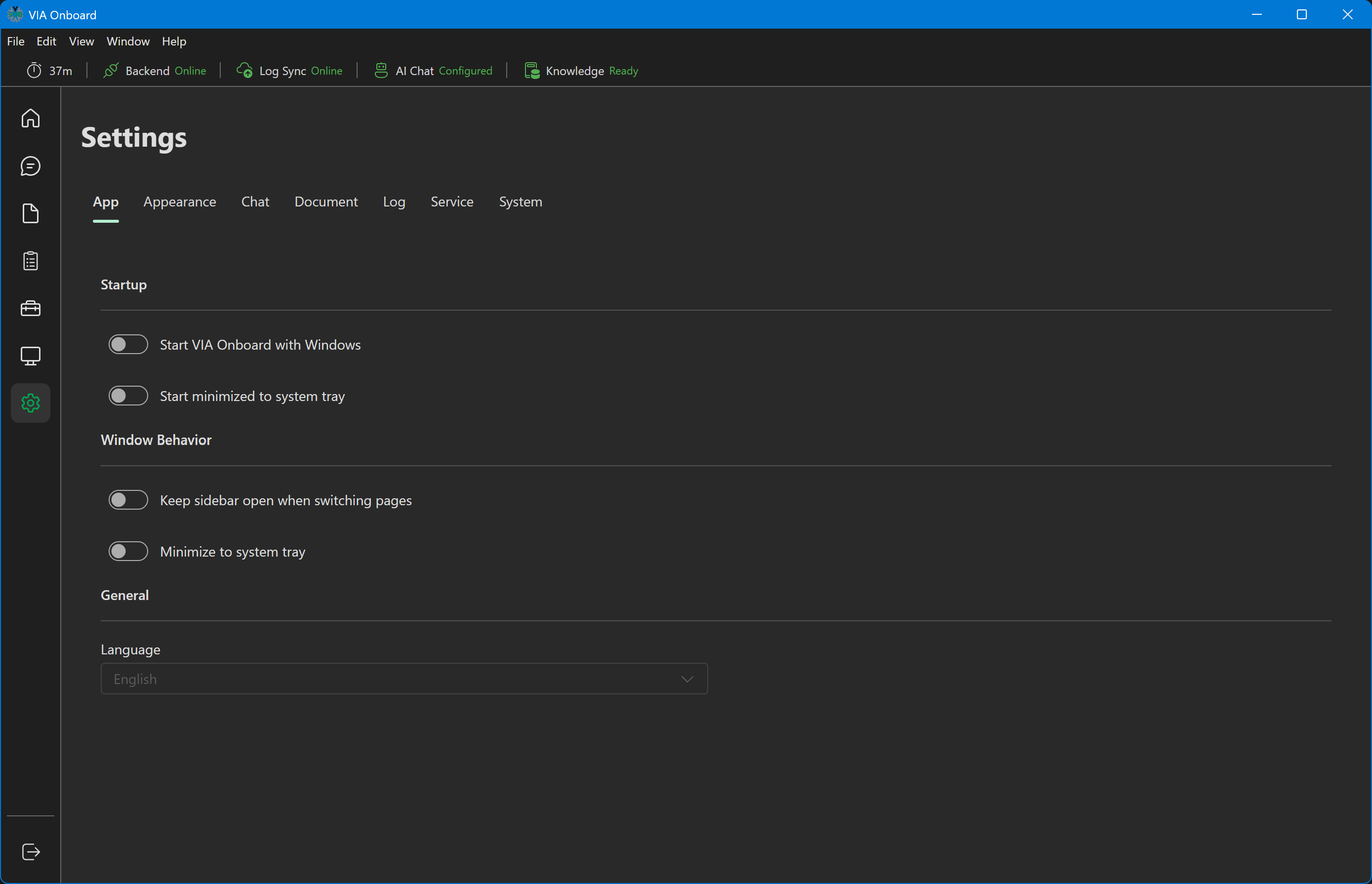
Settings — App tab (default)
App
General application behavior settings.
Startup
| Setting | Description |
|---|---|
| Start VIA Onboard with Windows | Adds VIA Onboard to the Windows startup programs list so it launches automatically on user logon. Only available in production builds — disabled in dev mode. |
| Start minimized to system tray | When starting with Windows, launch to the system tray instead of opening the main window. |
Window Behavior
| Setting | Description |
|---|---|
| Keep sidebar open when switching pages | Keeps the sidebar expanded as you navigate between sections. |
| Minimize to system tray | When you close the main window (X button), minimize to system tray instead of exiting. |
General
| Setting | Description |
|---|---|
| Language | A dropdown showing English, Italian, and German — but it's locked/disabled in this version. Only English is actually available. |
Appearance
Visual appearance settings. (The route is /settings/theme internally, but the tab is labeled "Appearance.")
Settings — Appearance
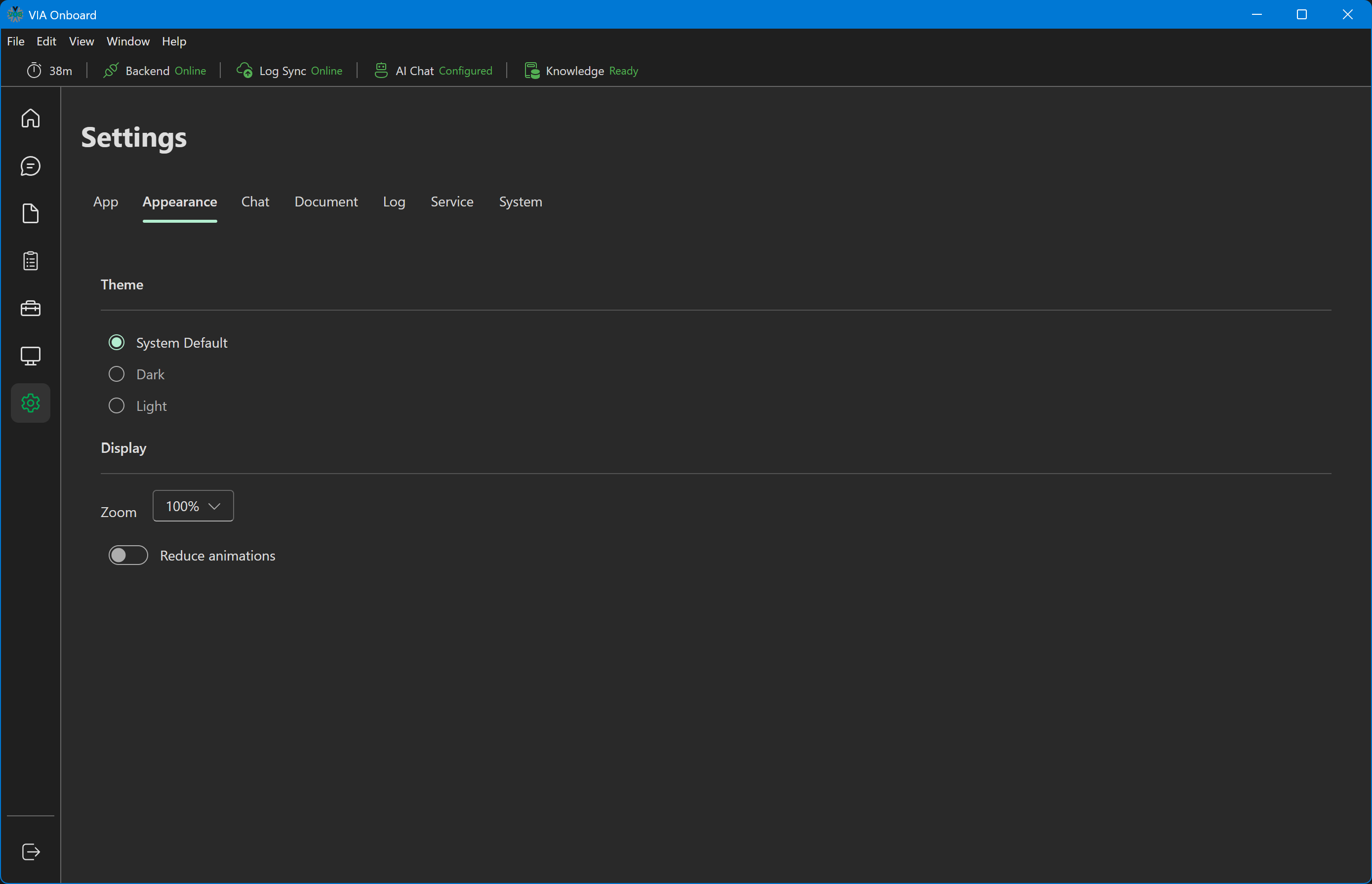
| Setting | Options | Description |
|---|---|---|
| Theme | System Default, Dark, Light | System Default follows the Windows theme preference. |
| Zoom | 75%, 90%, 100%, 110%, 125% | A fixed dropdown of zoom levels — not a continuous slider. Scales the entire application UI. |
| Reduce animations | On/Off | Disables CSS transitions and animations throughout the app. |
Chat
Settings — Chat
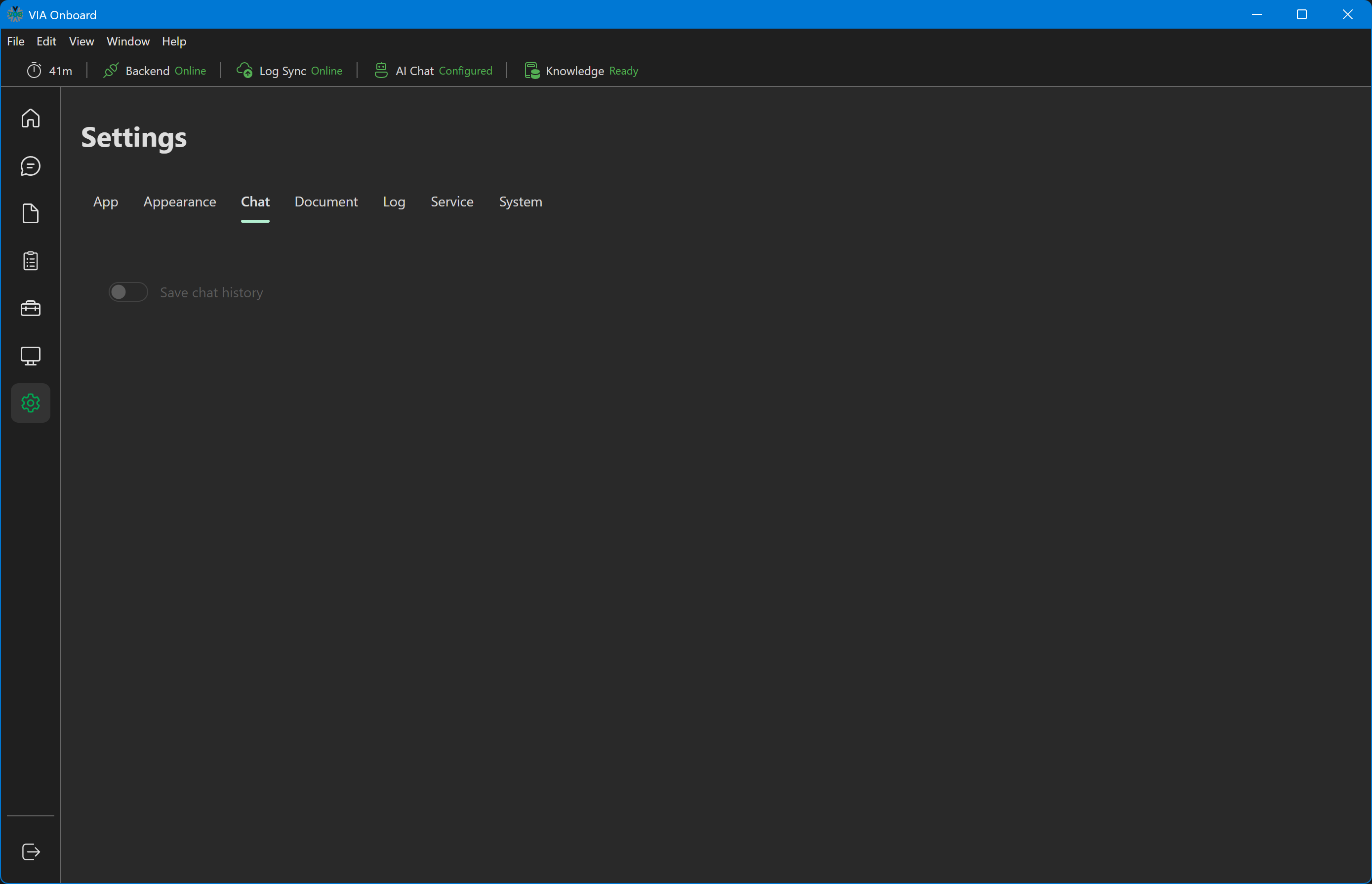
This tab currently contains a single "Save chat history" toggle, and it's disabled/non-functional in this version — there's no way to change it from the UI.
There are no user-configurable AI model, API key, or endpoint fields anywhere in Settings. The chat model and API key are fixed at build time (from the bundled configuration) and are not editable from within the app.
Document
Configure how documents are displayed and opened.
Settings — Document
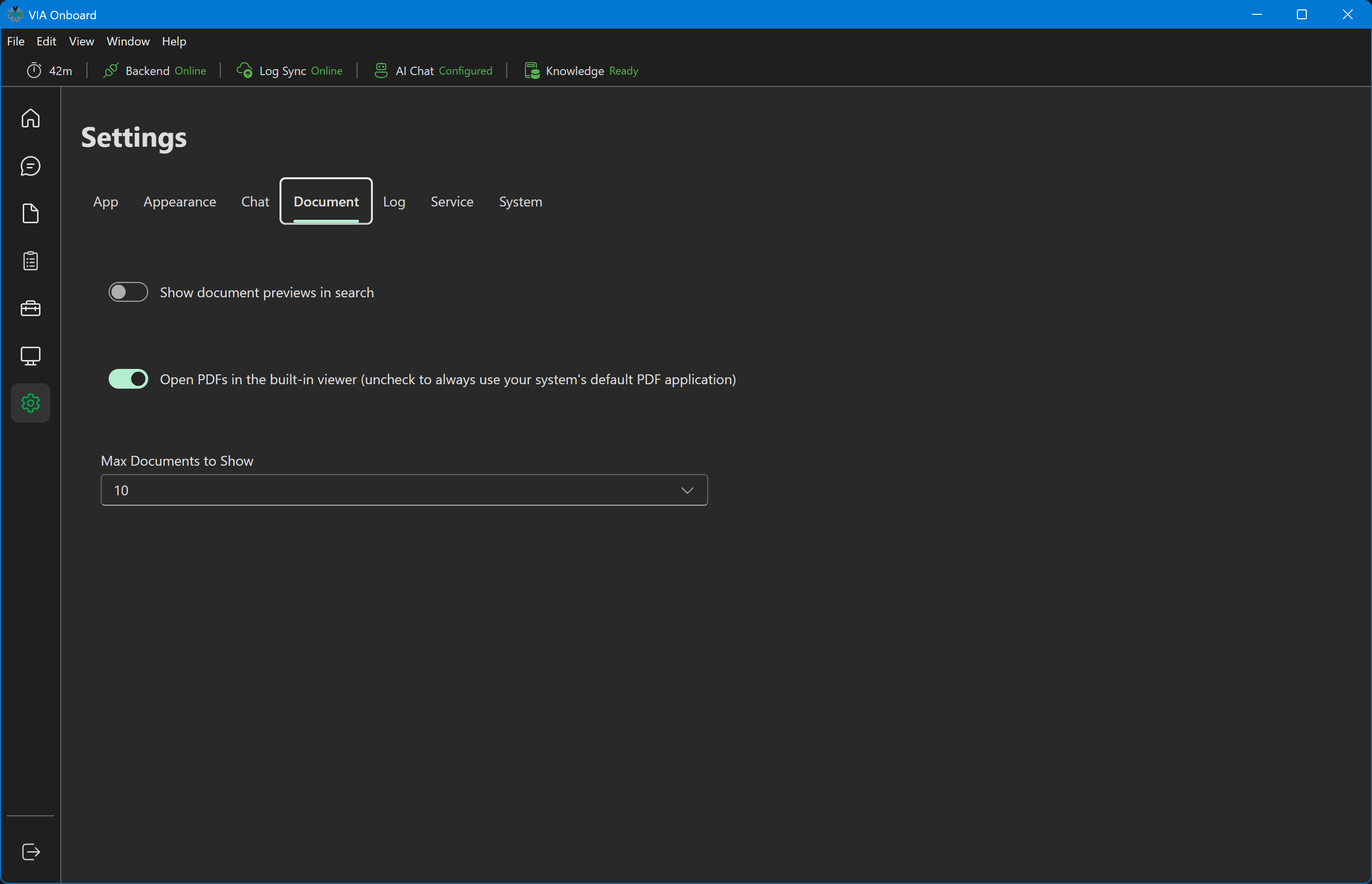
| Setting | Description |
|---|---|
| Show document previews in search | Toggles whether search results show a content preview snippet. |
| Open PDFs in the built-in viewer | When on (default), clicking a document — from View Documents, Search, or a Chat citation — opens it in VIA Onboard's in-app PDF viewer, jumping straight to the relevant page when one is known. When off, PDFs always open in your system's default PDF application instead. |
| Max Documents to Show | Limits how many documents appear in search results (5–50). |
The document library itself is fixed — VIA Onboard ships with a bundled set of manuals and fetches them automatically on first run. There is no user-configurable source folder or manual re-index here.
Log
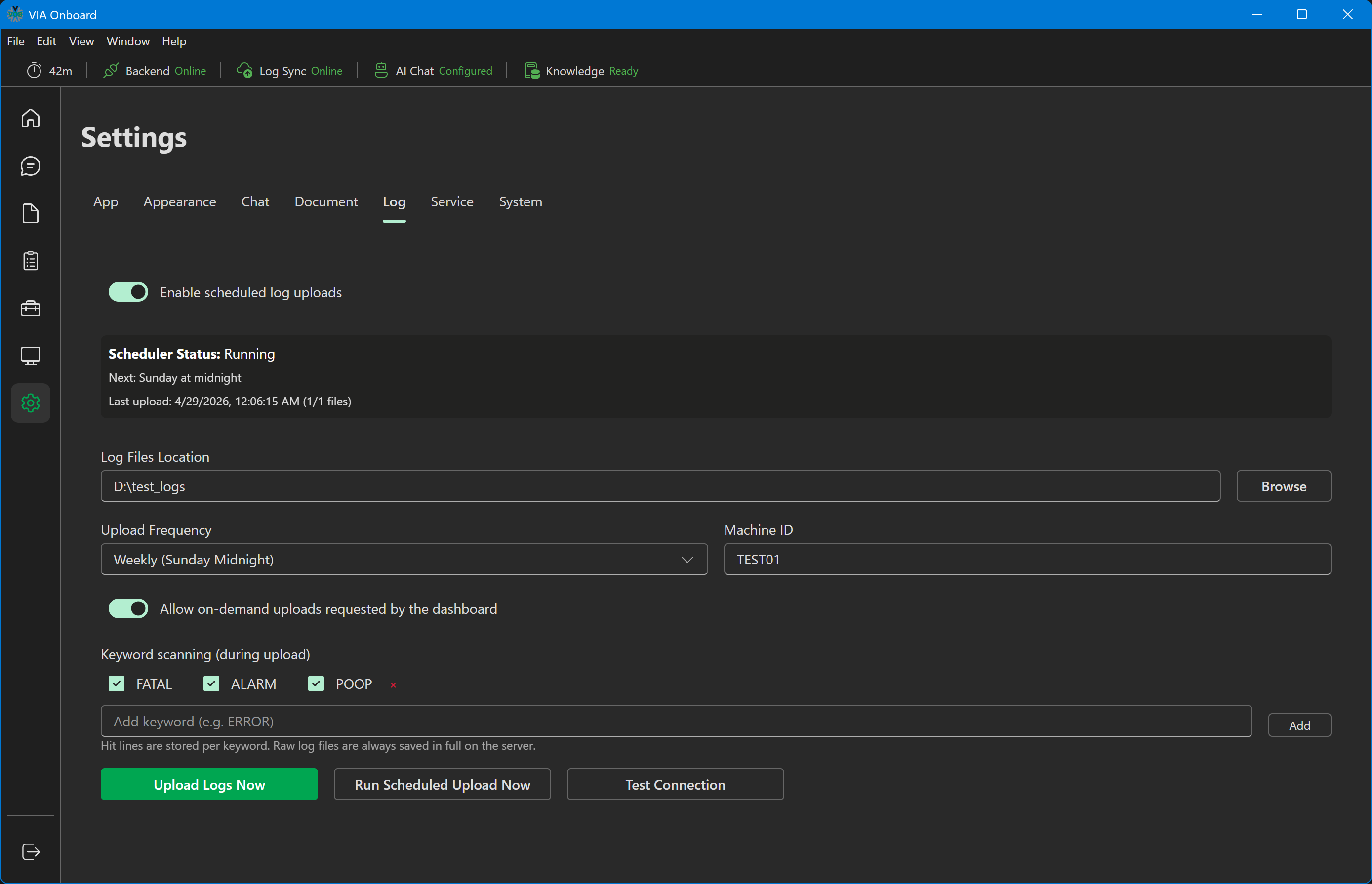
Configure log upload scheduling and the keywords scanned for during upload. This is also where you trigger uploads manually — there's no separate upload control in the Logs section itself.
Settings — Log
| Setting | Description |
|---|---|
| Enable scheduled log uploads | Turns on the background scheduler. When enabled, a status panel shows whether the scheduler is running, the next scheduled upload time, and a summary of the last upload. |
| Log Files Location | Folder containing the log files to upload, chosen via Browse. |
| Upload Frequency | Daily, Weekly (Sunday midnight), or Monthly (1st at midnight) — how often the scheduler uploads the contents of the log folder as a batch. |
| Machine ID | The machine identifier attached to uploaded batches. This is the single source of truth for the machine ID used throughout the app — Service requests and the Logs section both read it from here. |
| Allow on-demand uploads requested by the dashboard | Lets the remote Analytics Dashboard request an upload outside the normal schedule. |
| Keyword scanning (during upload) | FATAL and ALARM are scanned by default; add custom keywords to also flag and sample those lines. Raw log files are always uploaded in full regardless of keyword filters — filters only affect which lines are sampled as "hits." |
Buttons:
- Upload Logs Now — immediately uploads the configured folder as a new batch, independent of the schedule.
- Run Scheduled Upload Now — manually triggers what the scheduler would do automatically (disabled unless scheduling is enabled).
- Test Connection — checks that the backend's scheduler endpoint is reachable.
Uploads are not based on watching the folder for new files in real time — they happen on the configured schedule, or when triggered manually/on-demand.
Service
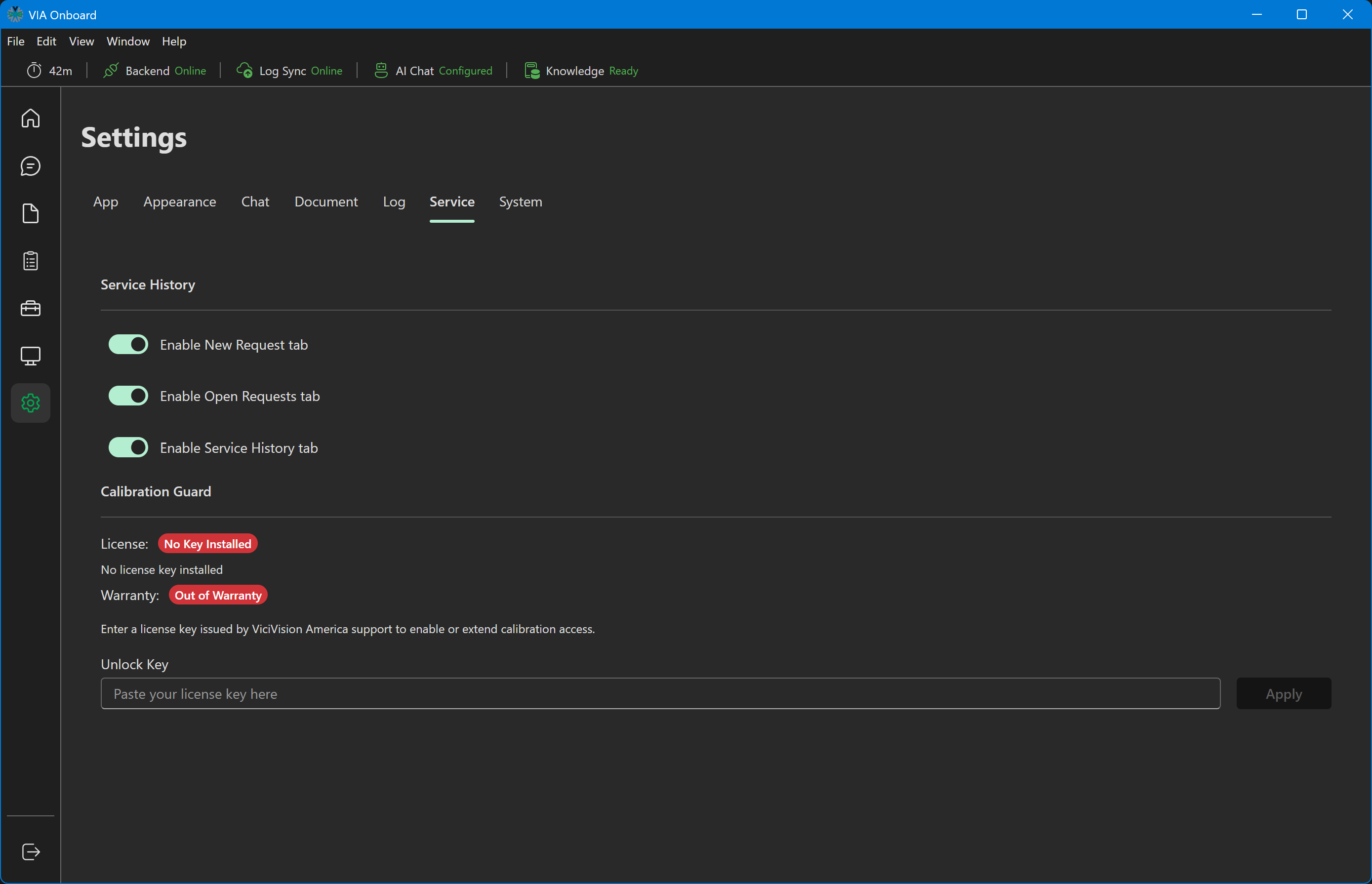
Toggle which Service tabs are visible, and manage the Calibration Guard license key. There is no Machine ID field here — that lives in Settings → Log.
Settings — Service
Service History
| Setting | Description |
|---|---|
| Enable New Request tab | Shows or hides the New Request tab in the Service section. |
| Enable Open Requests tab | Shows or hides the Open Requests tab in the Service section. |
| Enable Service History tab | Shows or hides the Service History tab in the Service section. |
All three default to on. Calibration History is always visible and isn't gated by a toggle.
Calibration Guard
Shows the current license status (e.g. "No Key Installed") and warranty status (e.g. "Out of Warranty"). Paste a key into Unlock Key and click Apply to install it. See Calibration Guard — License Keys for details.
System
Configure which System Status metric tiles are shown on the System Status page.
Settings — System
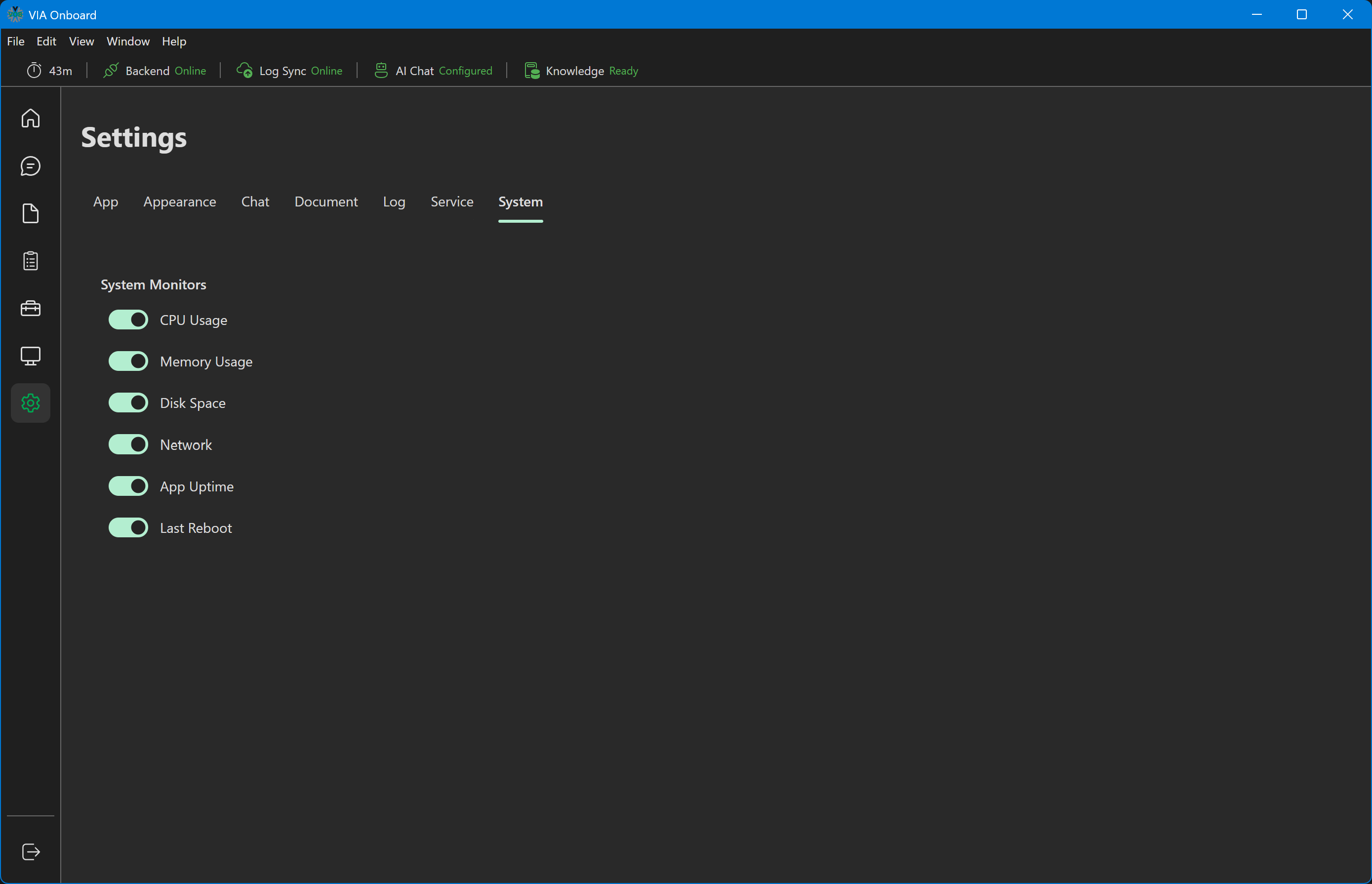
Toggle individual monitors on or off. All monitors are enabled by default. The available monitors are:
- CPU Usage
- Memory Usage
- Disk Space
- Network
- App Uptime
- Last Reboot
This only affects the System Status tab — the Diagnostics tab always shows all six hardware metrics regardless of what's hidden here.